OVERVIEW
Move to View option provides the user to move the items from the work item grid to the product tree, within the project, and from one project to another project in a Solution where the user wants.
This option is not available for Defects, frozen items and branched items.
HOW TO MOVE THE ITEMS:
- Choose the module from the sidebar, then select the project from the project selector drop-down list at the top of the left pane (if applicable) and click the List View icon.
- Select the required work item type from the left side pane.
- In the work item grid, select the required work item and select the “Move to View” option in the More Actions section.
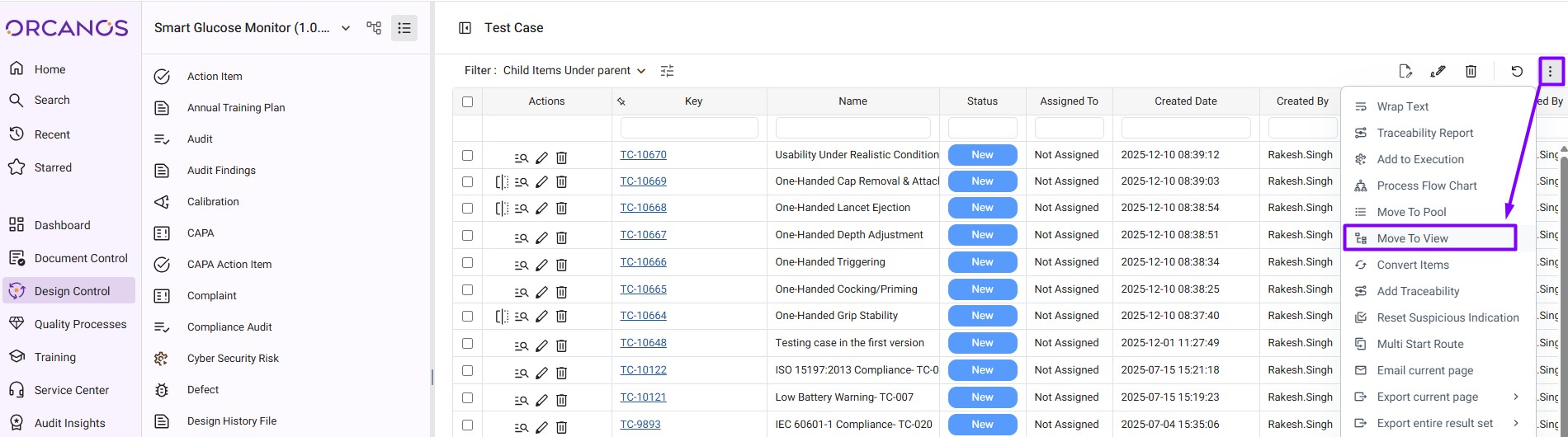
- In the pop-up window, select the Project name and Parent name where the user wants to move the item.
- Click on Save. Item(s) shall be moved successfully.
The item path gets changed after successful move. The move event is also recorded in Item’s history
Note : Items for which Copy as link items are there will not be moved.