OVERVIEW
Process flow chart allows the user to view the process flow of that work item. It displays the status, transition and auto-assign values
HOW TO VIEW PROCESS FLOW CHART
To view the process flow chart, the user can follow the simple steps mentioned below
- Choose the module from the sidebar, then select the project from the project selector drop-down list at the top of the left pane (if applicable) and click the List View icon.
- Select the Required Work Item
- Select Single/multiple Items by checking the Checkbox in the Work Item Grid
- Select the Process Flow option from More Actions Icon
- A pop up will appear that displays the status flow transition.
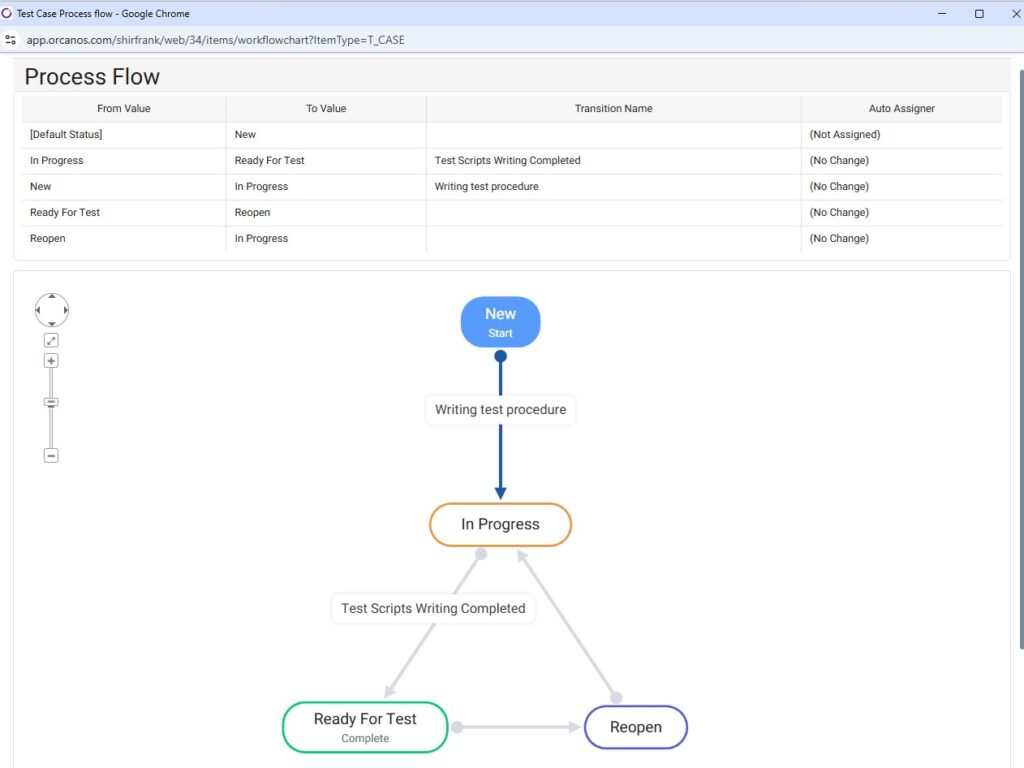
Scroll mouse to zoom in and zoom out.
Another way A user can review the process flow is from within the work item itself:
- In the work item, look for the Status field.
- Aside this field a process flow icon is displayed,
- Clicking on it will display the process flow for the specific type of work item.