This feature is available from version 6.0
OVERVIEW
The Shortcut Panel allows you to quickly access your most important items, views, and actions (including links to external resources you use regularly) – all directly from the Home page or any dashboard in the Dashboard module.

How to add a Shortcut Panel?
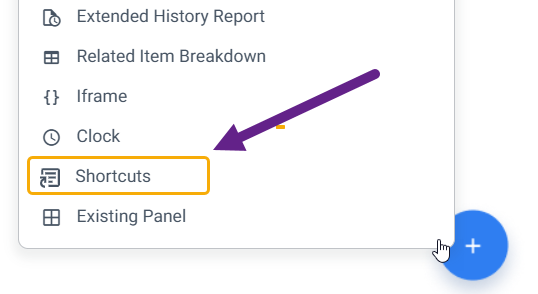
Hover over the + (add) icon on the bottom-right corner of your Home/Dashboard page and select ‘Shortcuts’.
The Manage Shortcut Panel window will appear, allowing you to create and customize a shortcut panel.

Name – Give your Shortcut Panel a name to easily identify it.
Panel Size – Choose the size of the panel:
- Small – 1 shortcut
- Medium – up to 3 shortcuts
- Full – up to 6 shortcuts
Number of Shortcuts – Select how many shortcuts this panel should display (up to the limit defined by the panel size).
Is Private – Check this box if you want the panel to be visible only to you. Leave it unchecked if you want others (with permissions) to see it too.
Title – Choose the display name for the shortcut (e.g., “My Project” or “Weekly Report”).
Link – Choose the type of link (URL):
- Internal – links to a place inside Orcanos (e.g. Project/Work Item).
- External – links to a webpage or system outside Orcanos.Insert the link (URL) in the field next to it.
Plus (+) Icon Link (optional) – Insert a link that opens when you click the plus (+) icon on the shortcut. This option is applicable when using an internal link and is commonly used to create a new work item in Orcanos directly from the shortcut.
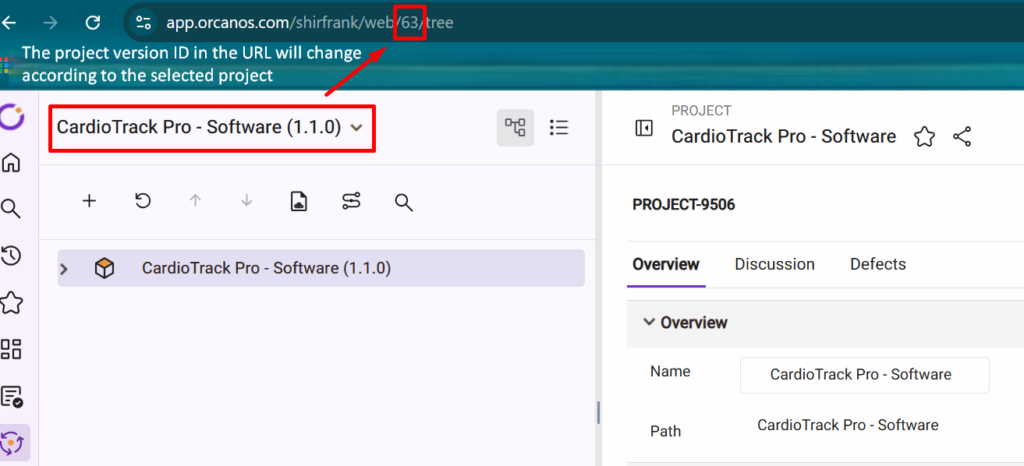
Note: As shown in the screenshot below, you can find your project version ID by navigating to the relevant project.
URL (link) Rules:
ℹ️ Use the full URL, including the https:// prefix.
👁️ View Items URLs
- URL for items in the tree view display
https://app.orcanos.com/[account_name]/web/[project_version_id]/tree?ItemId=[item_id]
You can copy the URL from the Locate on Tree icon
by right-clicking it and choosing the option of copy link address. Alternatively, you can simply click on the relevant item on the tree and copy the URL.
- URL for list of work items in the list view
https://app.orcanos.com/[account_name]/web/[project_version_id]/items/Listing?Item=[item_code]
➕ Add Items URLs
- URL for create a new item
https://app.orcanos.com/[account_name]/web/[project_version_id]/items/Manage?Item=[item_code]
- URL for create a new item from template:
Pool item
https://app.orcanos.com/[account_name]/web/[project_version_id]/items/AddFromTemplate?Item=[item_code]&TemplateId=[template_id]
Tree view item
https://app.orcanos.com/[account_name]/web/[project_version_id]/items/AddFromTemplate?Item=[item_code]&TemplateId=[template_id]&ParentID=[parent_id]
Icon – Choose an icon from the dropdown to visually represent the shortcut.
Color – Choose a color for easy recognition.
Click ‘Save’.