This article is relevant for version 5.2.x
OVERVIEW
Whether you are navigating the product tree, executing tests, or setting up automated alerts, Orcanos has several built-in features designed to streamline your workflow.
Below is a guide to some of the most useful tricks and functionalities available in the system.
Navigation & Interface Shortcuts
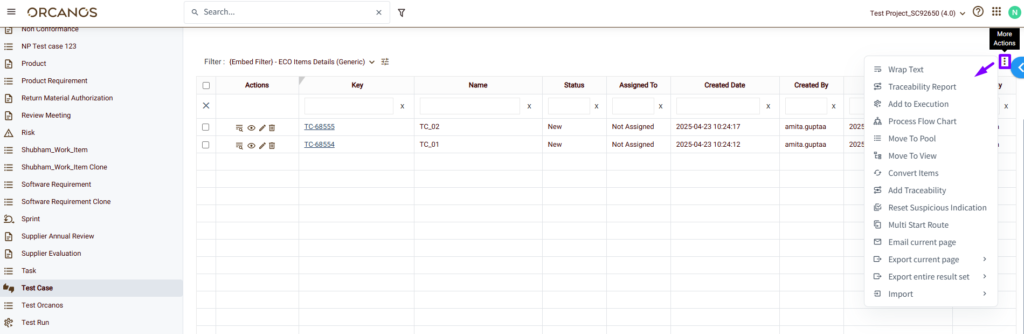
Work Items View – More Actions Menu
In the top-right corner of the Work Items View, there is a 3-dots button named ‘More Actions’. Click it to see more options.
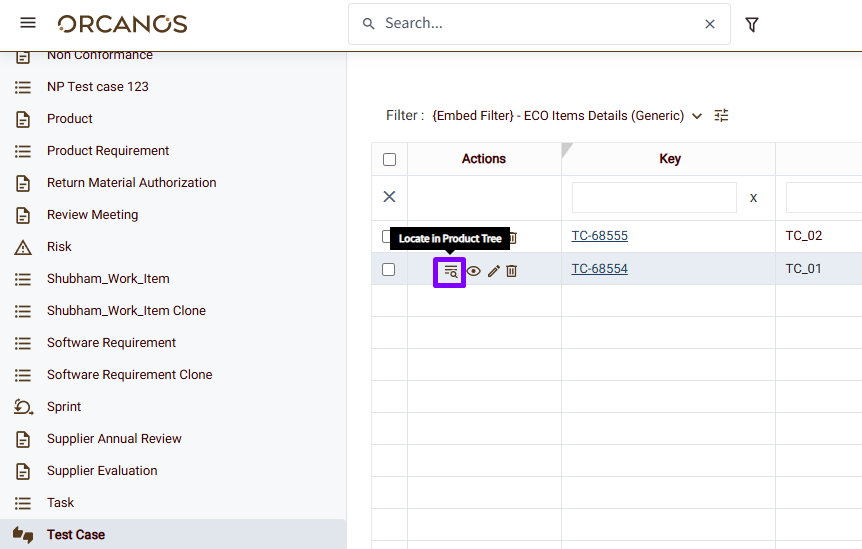
Locate In Product Tree
Click the ‘Locate In Product Tree’ icon in the Actions column of the filter results grid in the Work Items View or in the global search results to jump directly to that item’s location in the Product Tree and quickly find exactly where it lives in your project structure.
Open Item for View
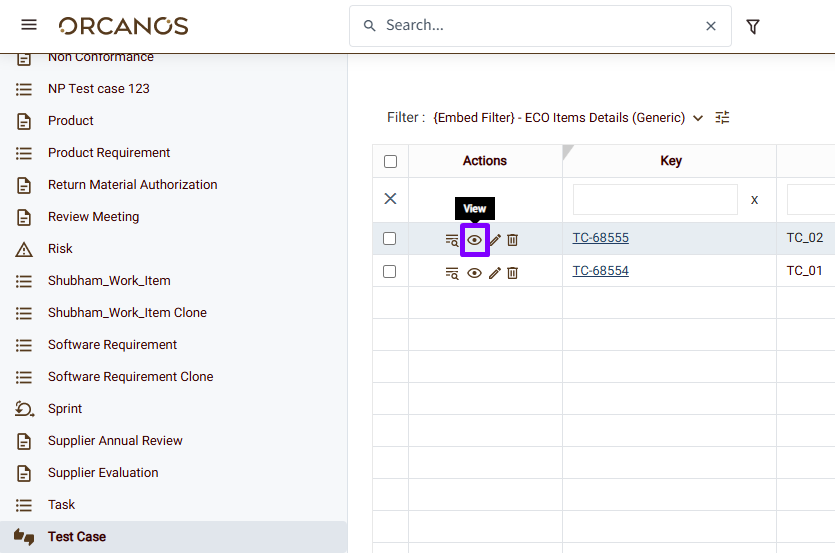
Click the ‘View’ (eye icon) in the Actions column of the filter results grid in the Work Items View to quickly access the full details page of that work item.
Recent
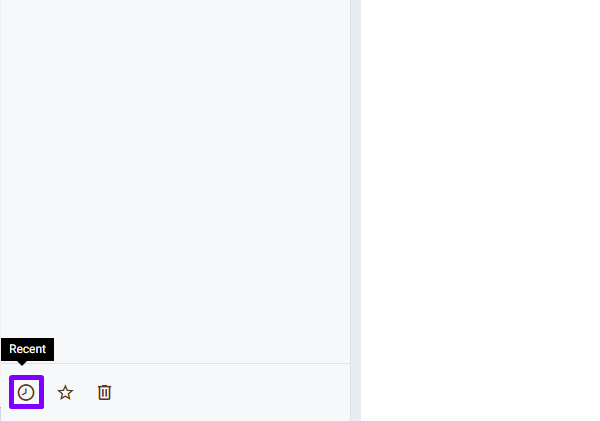
To quickly return to the records you were recently working on, click the ‘Recent’ (clock icon) at the lower-left corner.
Starred (Favorites)
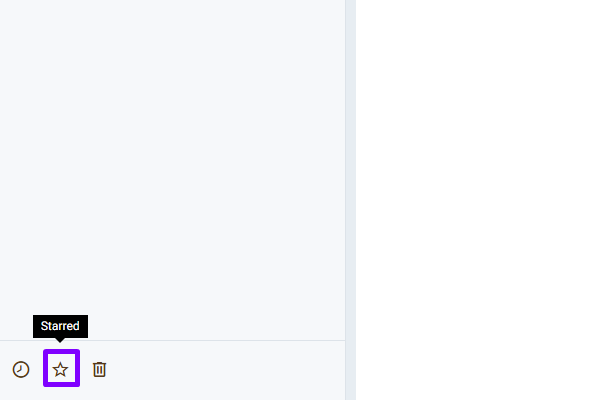
You can mark filters and items as ‘Favorites’ by clicking the star icon next to them. This is user-specific, allowing each user to maintain their own list of important items & filters and quickly access them.
Trash (Recycle Bin)
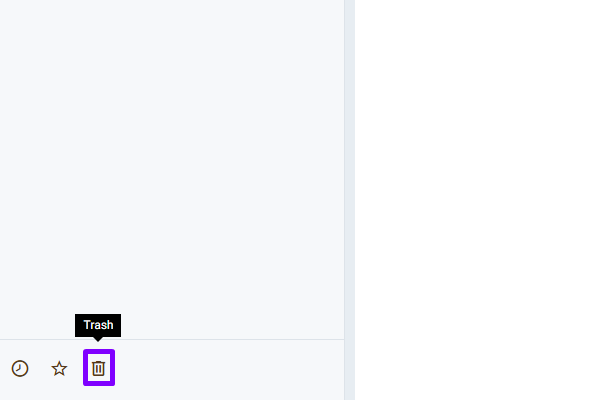
Find deleted items here. Restore them or delete them permanently.
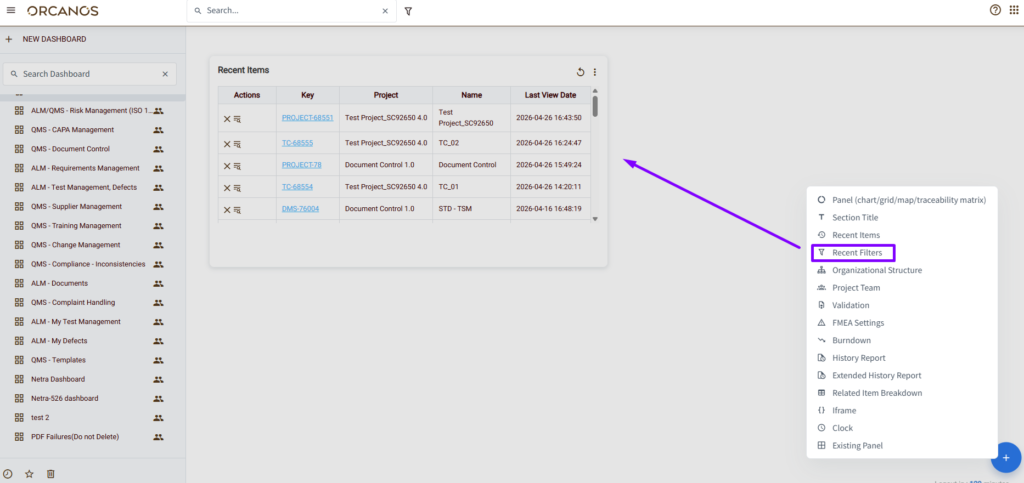
Recent Filters (Dashboard Panel)
You can add or use the “Recent Filters” panel on your dashboards. It allows you to quickly access the filters you use most often without having to navigate to the Work Items View.
Search
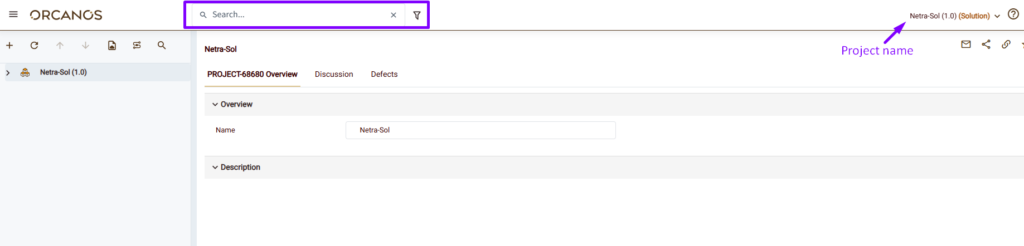
Global Search
The global search, located at the top bar, allows you to quickly find specific work items by their key (ID), name or description within your selected project.
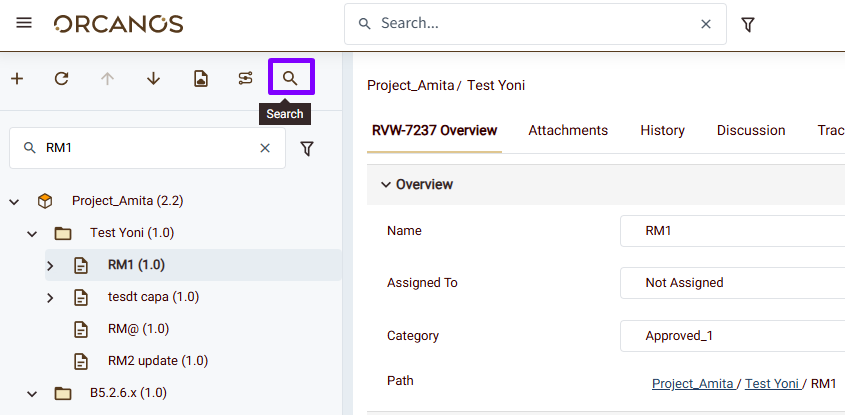
Product Tree View – Search In Tree
Use the ‘Search In Tree’ option to quickly find items in the tree.
Test Management & Traceability
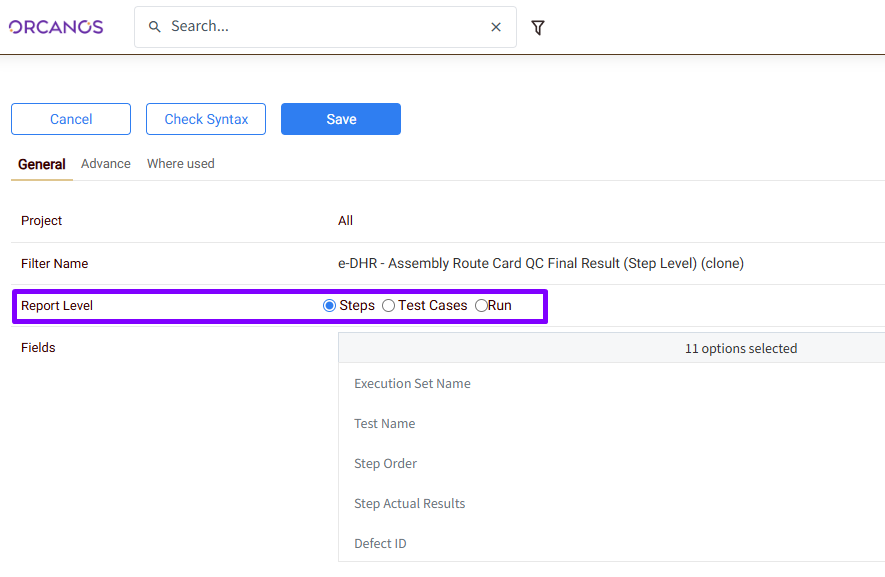
Test Run Filter
By creating a filter for the ‘Test Run’ Work Item (select ‘Test Run’ in the left pane of the Work Items View), you can extract detailed execution data, such as listing all test cases that have failed steps but no associated defects. You can also set the report level to “Steps” to see granular PASS/FAIL or NO RUN step statuses, along with linked Defect IDs.

Product Tree View – Tracing Mode
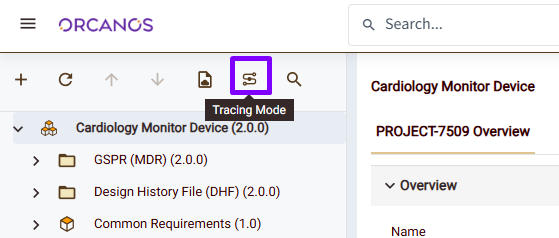
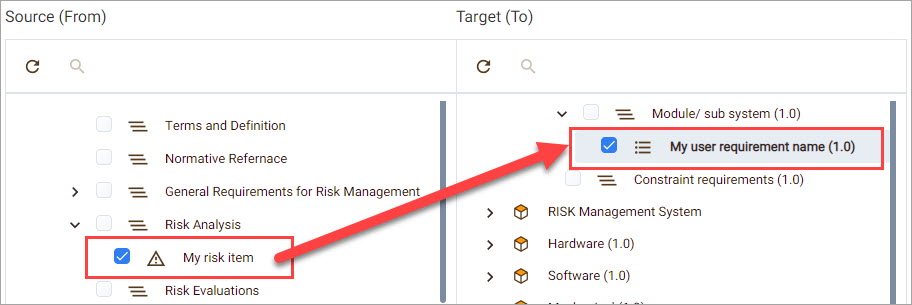
The Traceing Mode option in the Product Tree action bar opens the Product Tree in two panes, enabling you to link work items on the left (such as Risks) to those on the right (such as User Requirements).
Defect – ‘Bug Verification’ Tab
Bug Verification is a tab on a Defect work item. This tab lets you run the related test (from which the defect was reported) to verify the bug. The run result is recorded in the related execution set where the bug was reported.

Productivity & Bulk Actions
Mass Update
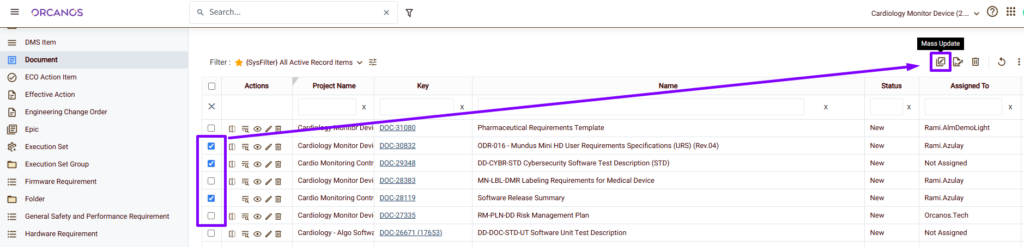
Want to update the status or modify a field for several items? Navigate to the Work Items View, select several items, and choose ‘Mass Update’ to change specific fields for all selected items at once.
When mass updating statuses, ensure all selected items comply with the same status flow constraints.
Online Document
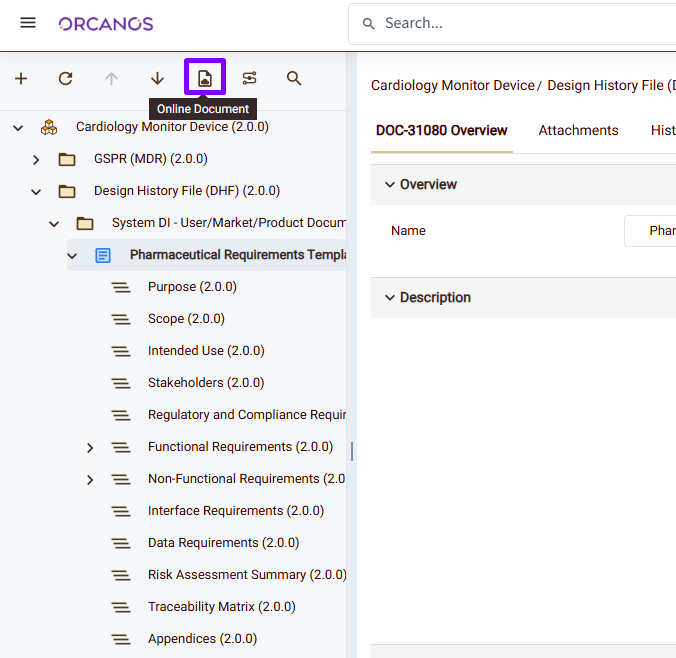
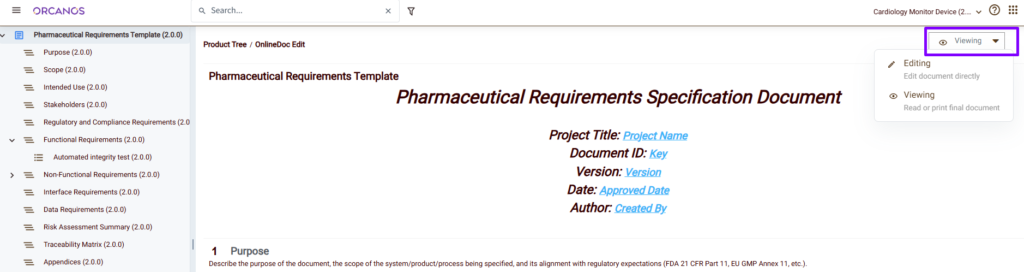
The ‘Online Document’ option in the Product Tree View action bar lets you quickly preview your document directly in Orcanos, without needing to export it to Word. It shows the document in the same structure as the final export, including headings, requirements, risks, and tests, so you can easily review how everything is organized and edit if needed.
Share Item
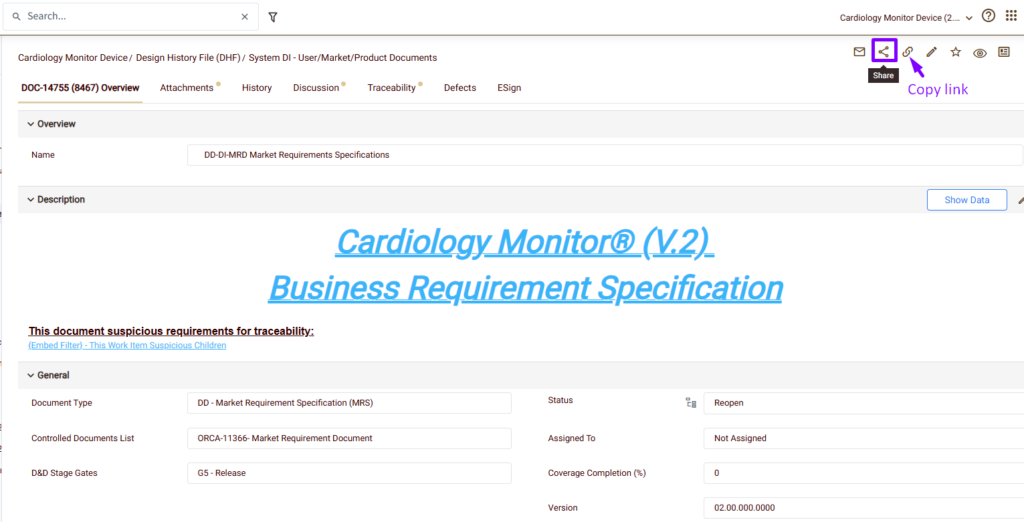
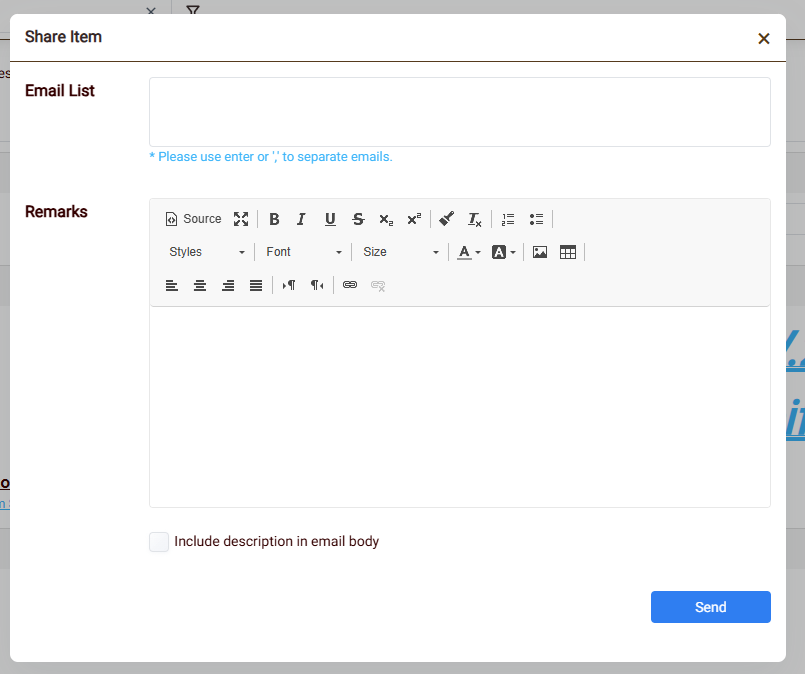
On the work item details page, click the ‘Share’ icon on the action bar, enter your colleague’s email address, and click ‘Send’ to instantly share the item details with them. You can also copy the item link by clicking the ‘Get link’ icon next to it and pasting it into an email or chat.
Notifications & Support
Email Notifications & Alerts
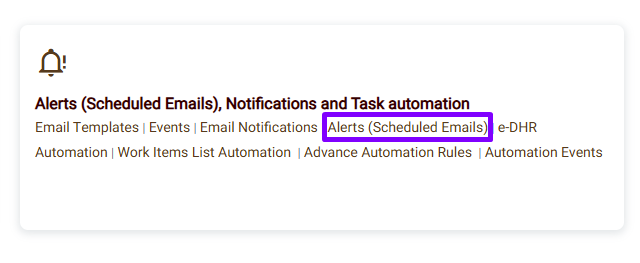
Don’t rely on manually checking dashboards for pending tasks. Automate your workflow by setting up Scheduled Alerts. First, create a filter (e.g., “Tasks due this week” or “Items waiting for my signature”), then go to Admin > Alerts (Scheduled Emails) to configure the system to send automated daily or weekly emails to the relevant users based on that filter’s results.
Learn more by reading this help center article
Support
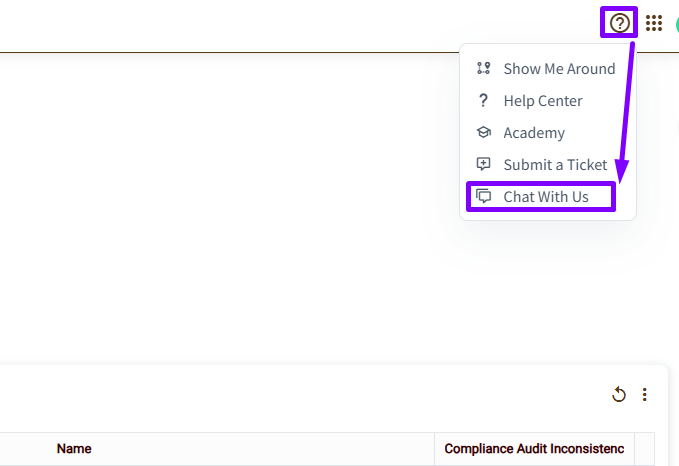
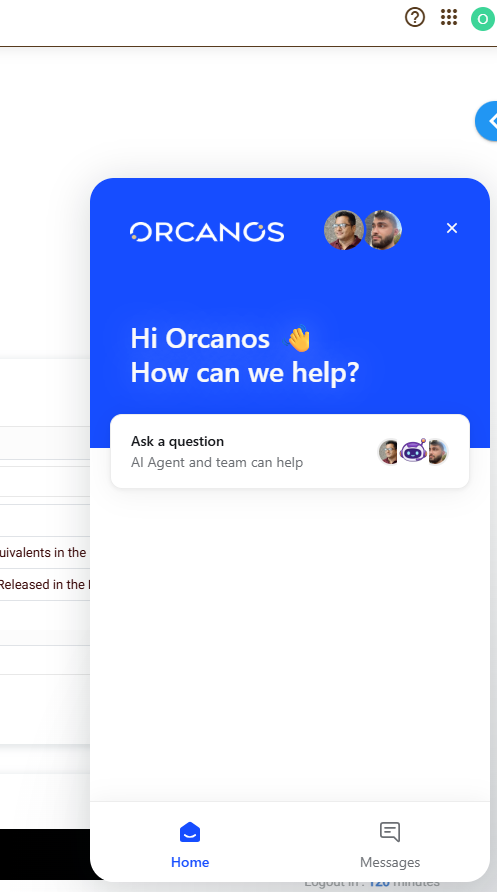
If you ever get stuck or need to report an issue, use the ‘Chat with Us’ in the Help (?) menu. You can interact with our well-trained AI Support agent, which is available 24/7 and provides immediate, helpful responses to common questions. If the answer provided is not sufficient, you can request to connect with a human support representative at any time and one of our human Support agents will get back to you.
You can also contact us at [email protected]