OVERVIEW
Checkout Selected option allows the user to checkout selected work items listed in the grid and allows to edit the work items one user at a time.
HOW TO CHECKOUT AN ITEM
To checkout an item, user can follow simple steps mentioned below
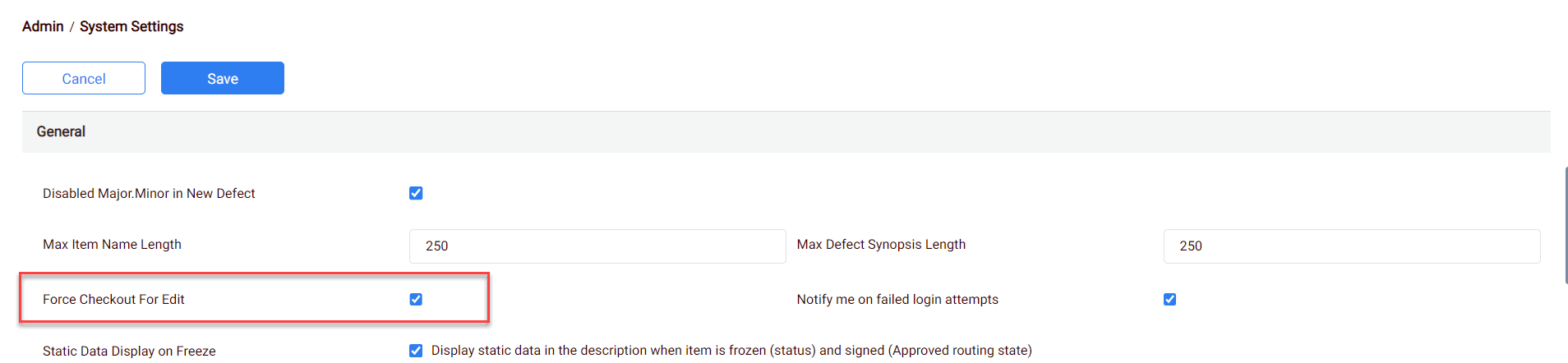
In Admin, System settings ‘Force checkout for edit’ should be enabled.
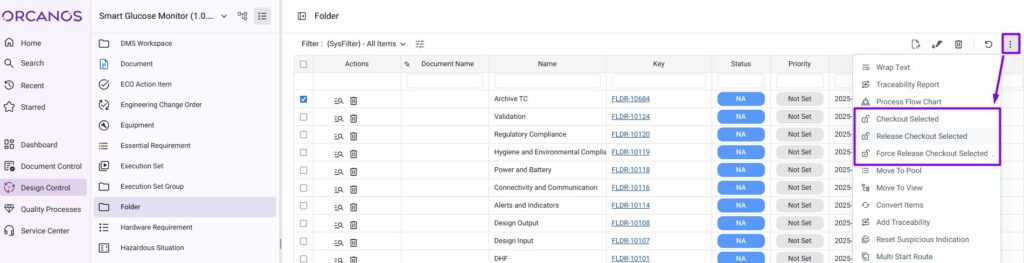
- Choose the module from the sidebar, then select the project from the project selector drop-down list at the top of the left pane (if applicable) and click the List View icon.
- Select the Required Work Item
- Select the Single/multiple Items by checking the Checkbox in the Work Item Grid (No Edit icon displayed for the items)
- Select the Checkout Selected option from More Actions Icon
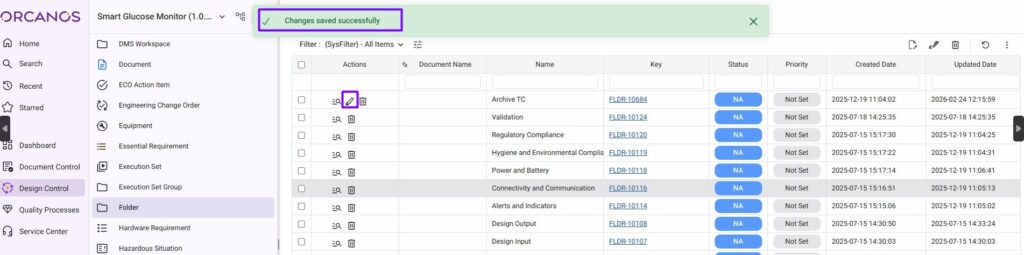
- The system shows the success message. Edit icon is now available in the Actions column.
- For the item in the product tree, Open lock icon get displayed.
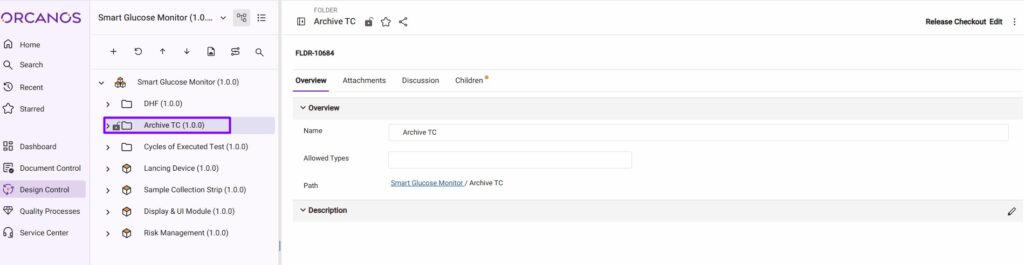
No other user can edit the Checkout Item. To free the Item, user needs to perform Release checkout action after editing.