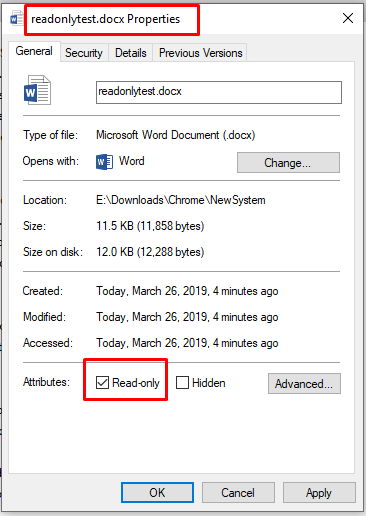
If the file is in read only form then make it editable first and then add the file.
CASE 1:
STEPS TO REMOVE THE READ ONLY RESTRICTIONS
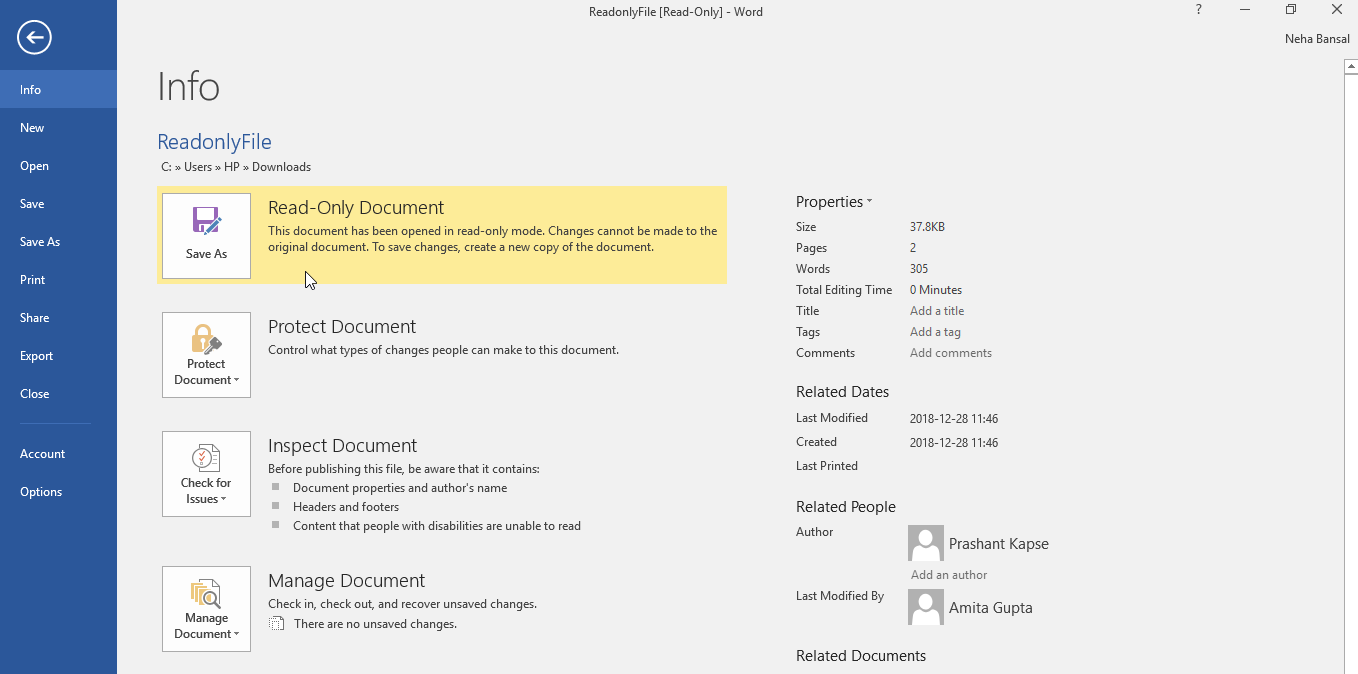
- Go to File> Info> Click on Save As Icon in Read only Document section.
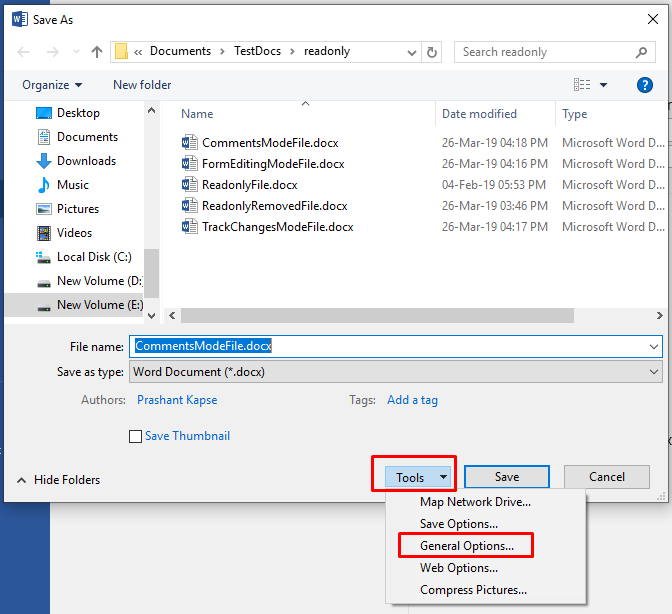
- On Save As window, select General Options in Tools
- In next popup uncheck Read-only recommended option
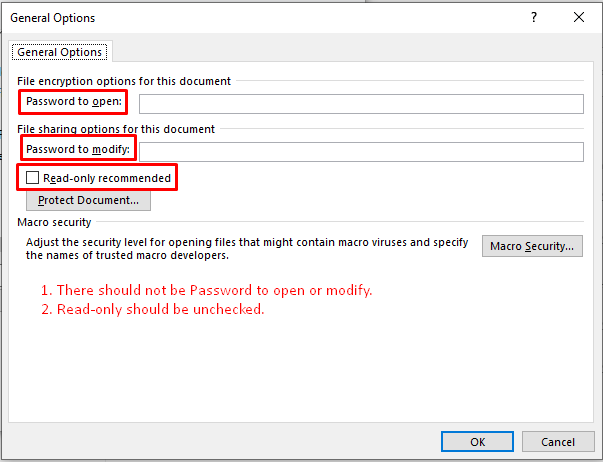
- Also, make sure there is no Password to open or modify the document on the same popup.
- Save the document.
CASE 2:
STEPS TO REMOVE RESTRICT EDITING WITH A READ -ONLY MODE
- Go to File Menu>Info> Click on Protect Document > Click Restrict Editing
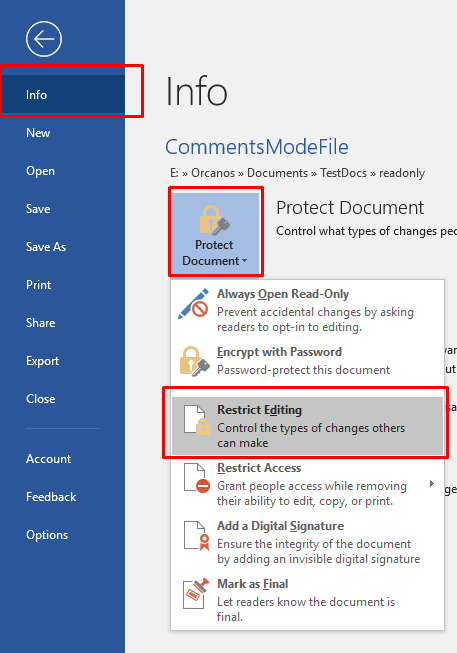
- In the following screen, The Restrict Editing panel will be visible on the right side of the document.
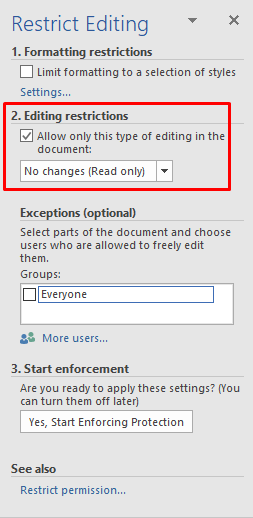
- Either uncheck the checked checkbox for the Editing restriction or select any other option (other than No Changes (Read only)) from the selection box next to it.
- Save As the file.
CASE 3:
Also check the File properties that it Read Only checkbox in Attributes field, should not be checked.