Overview
This article will walk you through the complete workflow of generating a Design Control document using Orcanos Online DocGen, uploading it to Document Control (DMS), and ensuring that your document headers automatically populate with both your Design Control data (like Document ID) and DMS data (like DMS ID, Revision, and Approver status).
Step 1: Setting up the Word Template (.dotx)
To ensure your headers capture data from both the ALM (Design Control) and DMS (Document Control) modules, you must set up a specific Word template (.dotx) using a combination of Orcanos bracket tags and Microsoft Word Quick Parts.
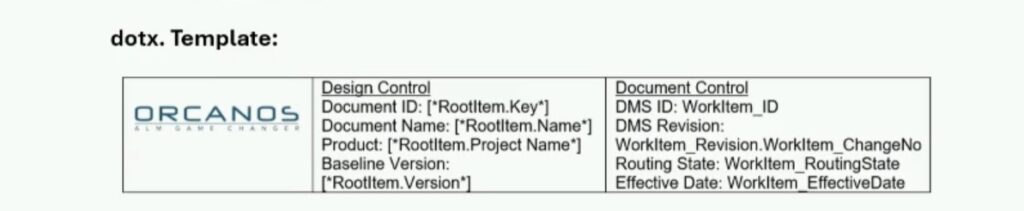
- Adding Design Control (ALM) Fields: For data that is populated immediately when you download the document via DocGen, you will type the following exact tags directly into your Word template’s header:
- Document ID: [*RootItem.Key*]
- Document Name: [*RootItem.Name*]
- Document Version: [*RootItem.Version*]
- Adding Document Control (DMS) Fields: For data that populates later when the document is routed and approved in DMS, you must use Word’s “Quick Parts” feature.
- In your Word template, click where you want the DMS field to appear.
- Navigate to Insert > Quick Parts > Document Property.
- Map the properties to the following Orcanos values:
- DMS ID: Use WorkItem_ID (This will output the full custom name and key, e.g., DMS-1234).
- Revision: Use WorkItem_Revision and WorkItem_ChangeNo.
- Approver/Routing State: Use WorkItem_RoutingState.
- Save your file as a Word Template format (.dotx).
Step 2: Generate the Document (DocGen)
Now that your template is ready, you can generate your Design Control document.
- In the Orcanos Product Tree, right-click the root document (e.g., DOC item) you want to export.
- Select Import/Export > Export to Word document.
- In the Online Document Generator screen, select your newly uploaded .dotx template from the Word Template dropdown.
- Click Generate.
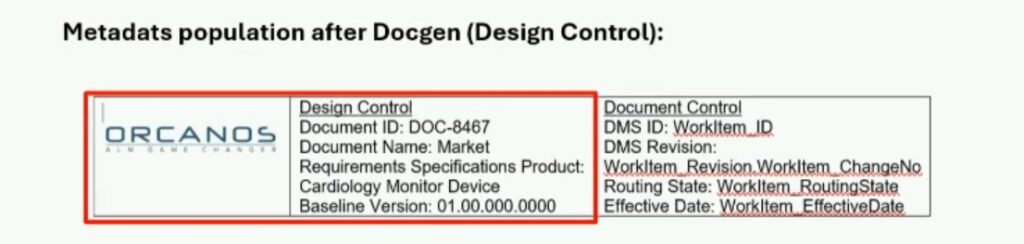
- The downloaded .docx file will now have the Design Control tags (like [*RootItem.Key*]) replaced with the actual ALM data. The DMS Quick Parts will remain blank or show placeholder text until the next step.
Step 3: Uploading to Document Control (DMS)
Next, upload your generated document into the DMS to initiate the approval process.
- Navigate to the Document Control project and open or create the relevant DMS Item.
- Go to the Revisions section of the DMS Item.
- Upload the .docx file you just generated.
- Click Start Routing and follow your company’s e-sign process.
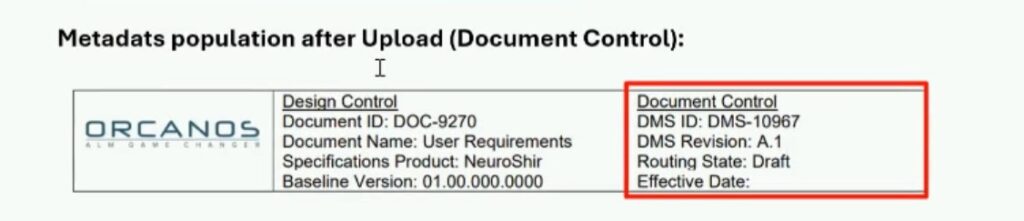
- Once the document is fully signed and Approved, the Orcanos system will automatically update the Quick Parts in your Word document header with the active DMS ID, the newly assigned Revision, and the Routing State. You can view these updated fields by clicking Download PDF.
The difference between using [*RootItem.ID*] (or [*RootItem.Key*]) and WorkItem_Revision comes down to the two different phases of your document’s lifecycle in Orcanos: the Generation Phase (ALM) and the Approval Phase (DMS).
Because these phases use two different system engines, they require two different methods for pulling data into your Word document.
Here is the breakdown of why they are different:
- [*RootItem.ID*] is for the DocGen Engine (Static Data) Bracketed tags like [*RootItem.ID*], [*RootItem.Key*], or [*RootItem.Version*] are instructions specifically for the Orcanos Online Document Generator.
- When it happens: This data is pulled at the exact moment you click “Generate” to download the file from the Design Control (ALM) product tree.
- How it works: The system looks at the root item you are exporting (e.g., your DOC item), extracts its current data, and permanently overwrites the bracketed tags with plain text in the downloaded Word file. Because this data represents the ALM origin of the document, it does not need to change once the document is generated.
- WorkItem_Revision is for the DMS Engine (Dynamic Data) Tags like WorkItem_Revision or WorkItem_RoutingState are used as Microsoft Word “Quick Parts” (Document Properties) specifically for the Document Control (DMS) module.
- When it happens: This data is updated after the document has been generated, uploaded to the DMS, and put through a routing process.
How it works: Because a document’s revision letter or approval status changes over time (e.g., moving from “Draft” to “Approved”, or from Rev A to Rev B), Orcanos cannot use static text. By mapping these fields to Word’s Quick Parts, the Orcanos e-sign engine can securely inject the active routing data into the file’s header or footer every time the document is signed or updated in the DMS.