Overview:
The Orcanos DMS Word Add-on enhances your document creation process by seamlessly integrating your Orcanos Document Management System (DMS) directly into Microsoft Word. By adding a dedicated Orcanos tab to your Word ribbon, the add-on lets you efficiently insert live DMS field placeholders such as Revision, Approval Date, Name, and ID, ensuring your documents stay synchronized with the latest data in your Orcanos environment. This tool simplifies document management by allowing you to populate critical metadata without leaving your workspace, reducing manual errors, and maintaining consistency across your documentation.
Note:
- The add-on will work on any version of Office 2016 or above
- The add-on is using a macro to insert data.
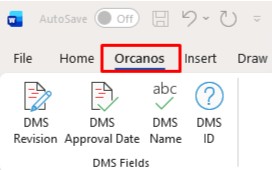
The Orcanos DMS Word Add-on adds an Orcanos tab to your Word ribbon with four buttons that insert DMS field placeholders directly into your document.
Prerequisites
- Microsoft Word 2016 / Office 365 (or later)
- Windows 10 or Windows 11
Installation Steps
- Download the ZIP file from the link below and extract it to any folder on your computer (e.g. C:\Orcanos Word Add-on\).
Link: https://drive.google.com/file/d/1UumQuGWbk2lBAq4-WMMkGB6vp-6iIVg5/view?usp=sharing
- Close all open Word windows before proceeding.
- Open the extracted folder and double-click Install.bat.

- If Windows shows a security warning (“Windows protected your PC”), click More info → Run anyway. No admin rights are required.
- A console window will open and run automatically. Wait for the message “Installation complete!”, then press Enter to close it.
- Open Word. You should now see the Orcanos tab in the ribbon.
- Using the Add-on click anywhere in your document where you want to insert a field, then click one of the four buttons in the Orcanos tab.
Button Inserts
DMS Revision [*Item.Revision*]
DMS Approval Date [*Item.Approved Date*]
DMS Name [*Item.Name*]
DMS ID [*Item.Key*]
Troubleshooting
If the installer shows an error about VBA access, do the following once before re-running:
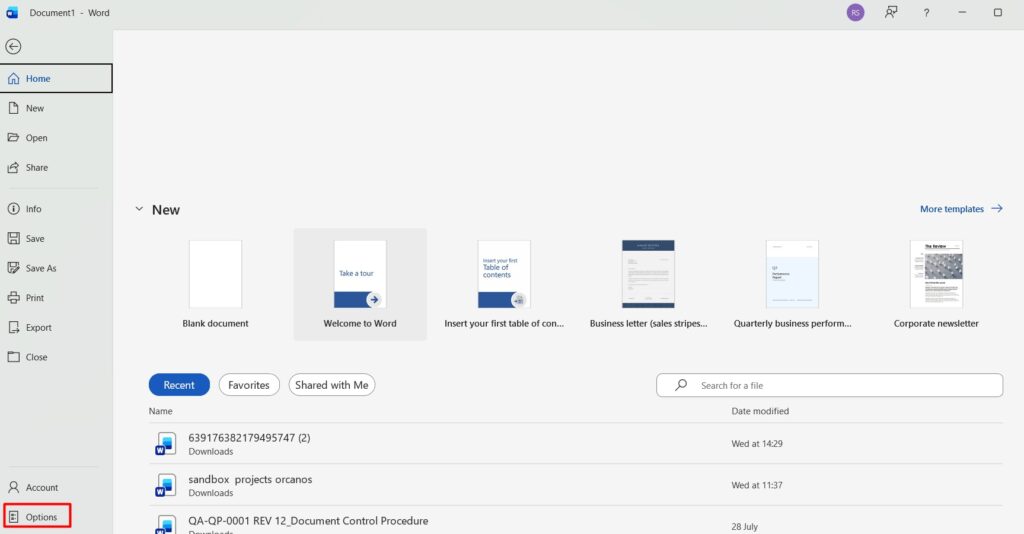
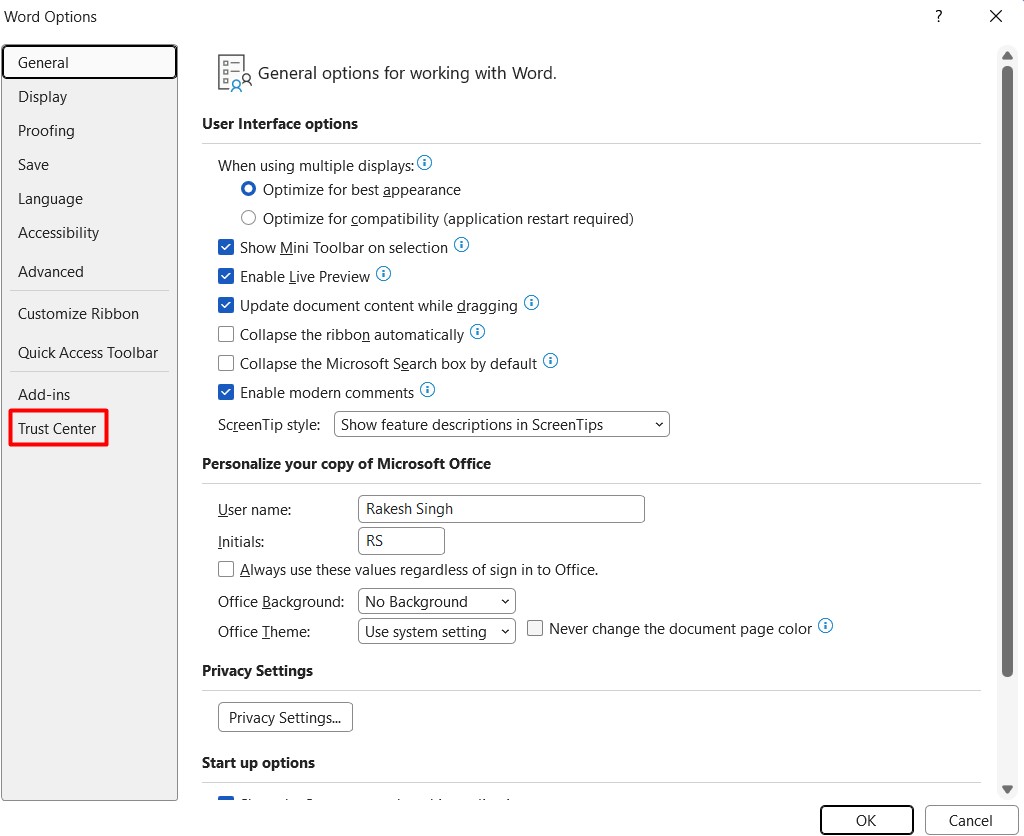
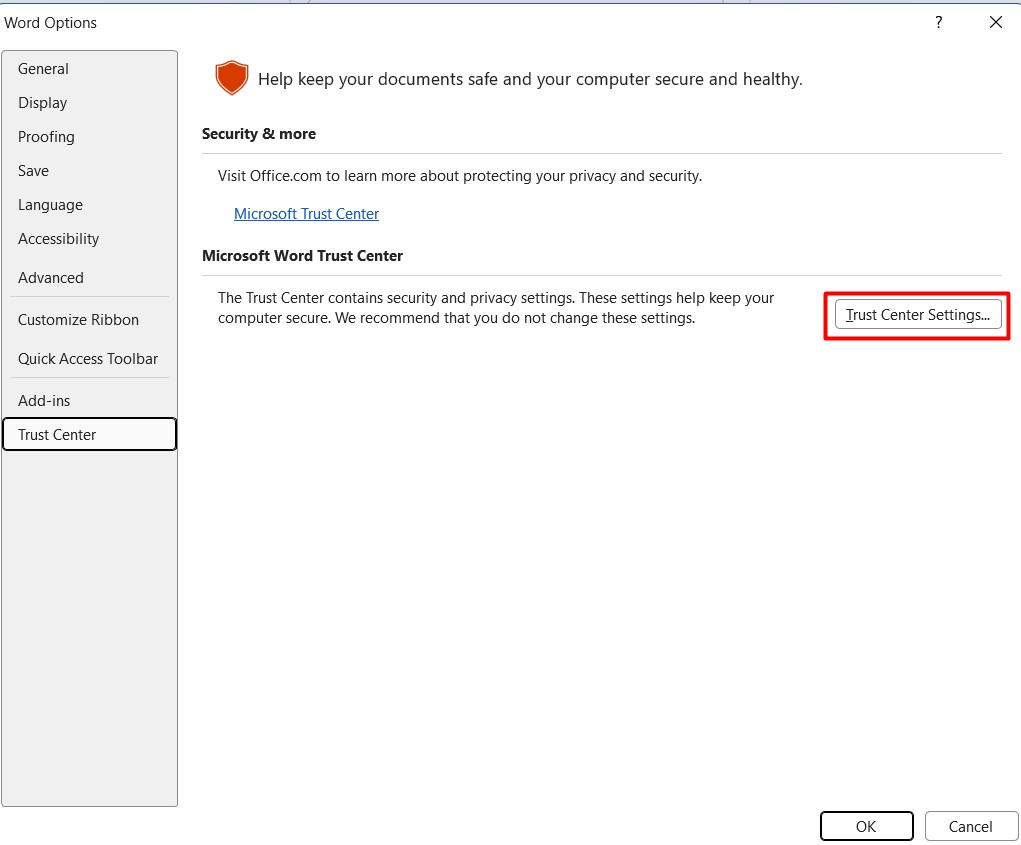
- Open Word → File → Options → Trust Center → Trust Center Settings
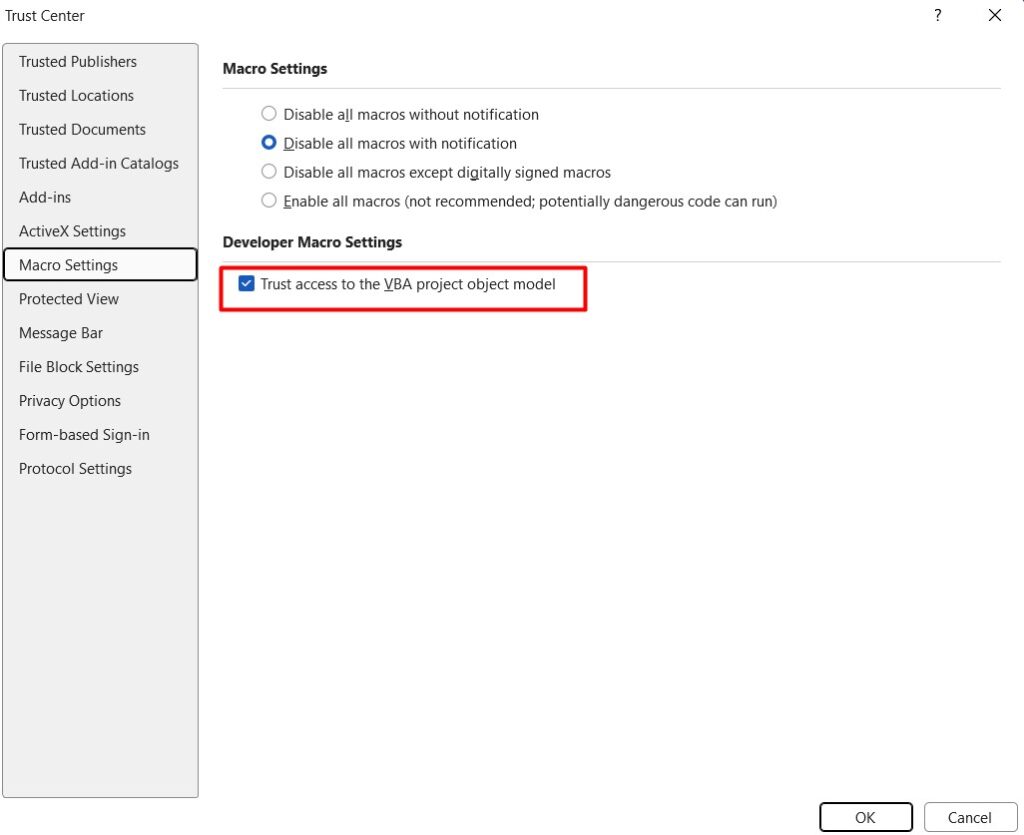
- Click Macro Settings
- Check “Trust access to the VBA project object model”
- Click OK, close Word, then double-click Install.bat again.